How to Bulk Edit Sales Receipts in QuickBooks Online
Fix deposit accounts, tax codes, and more across hundreds of QuickBooks Online sales receipts in place — no spreadsheet export, with one-click undo.
Imagine you inherit a client with 5,836 sales receipts — and every single one is wrong. Double sales tax, posted to the wrong deposit account, the works. In QuickBooks Online, fixing that is a multi-week temp hire, or days of opening receipts one at a time.
There's a faster way. This post walks you step by step through how to bulk edit sales receipts in QuickBooks Online — directly, in place, without the export-to-spreadsheet round trip most tools put you through.
Why QuickBooks Online can't do this natively
QuickBooks Online's one true batch tool, Reclassify Transactions, only changes the account and class, only works in Accountant view, and never modifies the deposit account or tax code on a sales receipt — precisely the fields that typically go wrong. So you get manual, one-by-one editing or a work-around.
Two fixes for them — and why one is faster
Most bulk-edit programs don't go beyond the spreadsheet round-trip: export your receipts to a CSV, modify the columns in Excel, map the fields, and re-import. It works, but it's sluggish, and it's easy to mis-map a column, and re-importing payment-linked transactions like sales receipts is a popular method to make duplicates or break the relationship between a receipt and its deposit.
The faster, safer option is to edit in place — modify the fields exactly where the records live, with no file leaving QuickBooks, no re-import phase. That's how Quellba works and that's how this tutorial works.
What you need
- One Quellba account ([sign up free](https://quellba.com) — 1 company, 500 rows/month, no card)
- Your QuickBooks Online company already connected to Quellba
How to do it
1. Go to the Sales Receipts view.
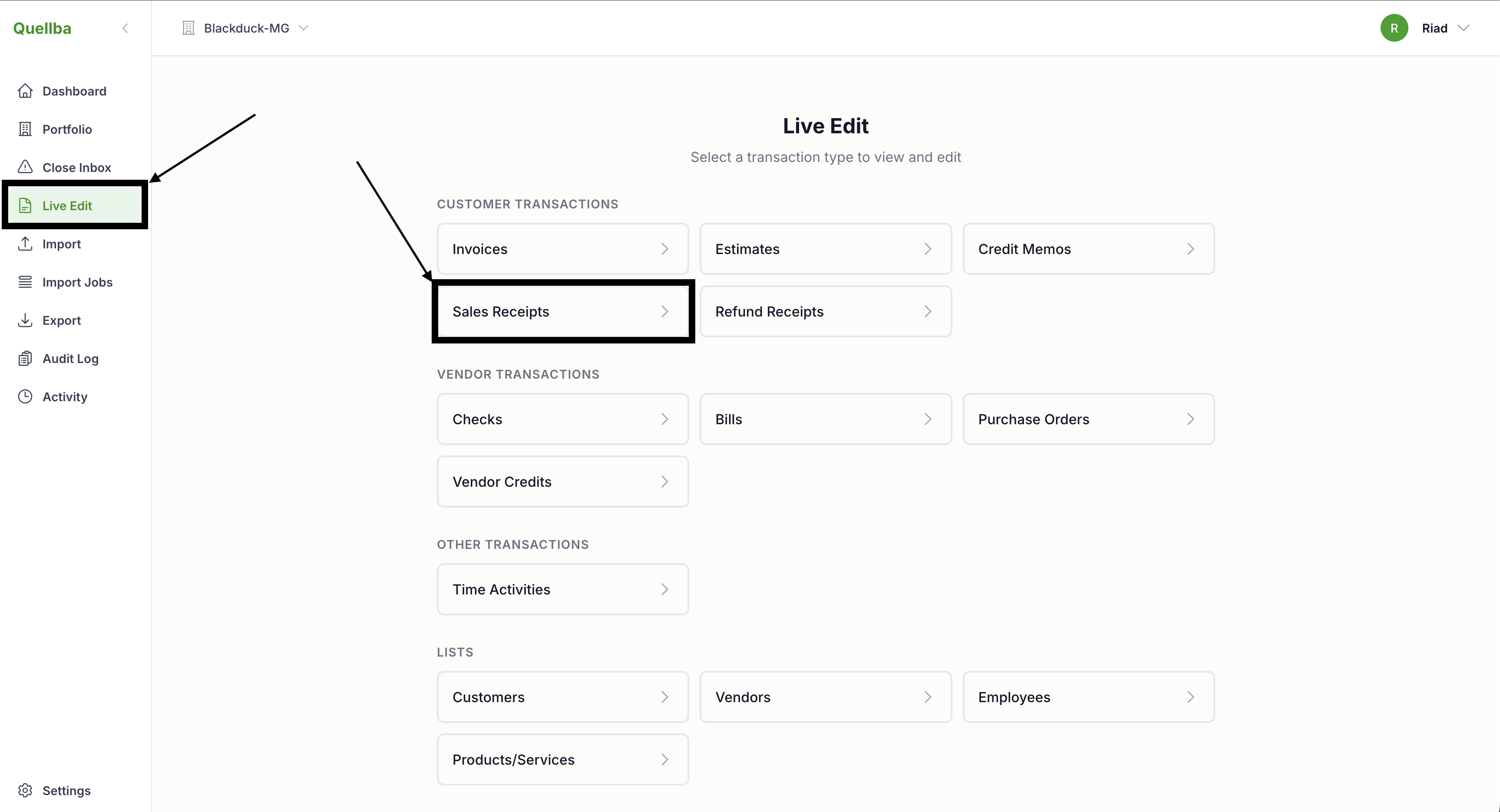
In the left sidebar, click Live Edit, then choose Sales Receipts under Customer Transactions. Quellba loads your receipts into a live, editable view.
2. Narrow your list to the receipts you need to fix.
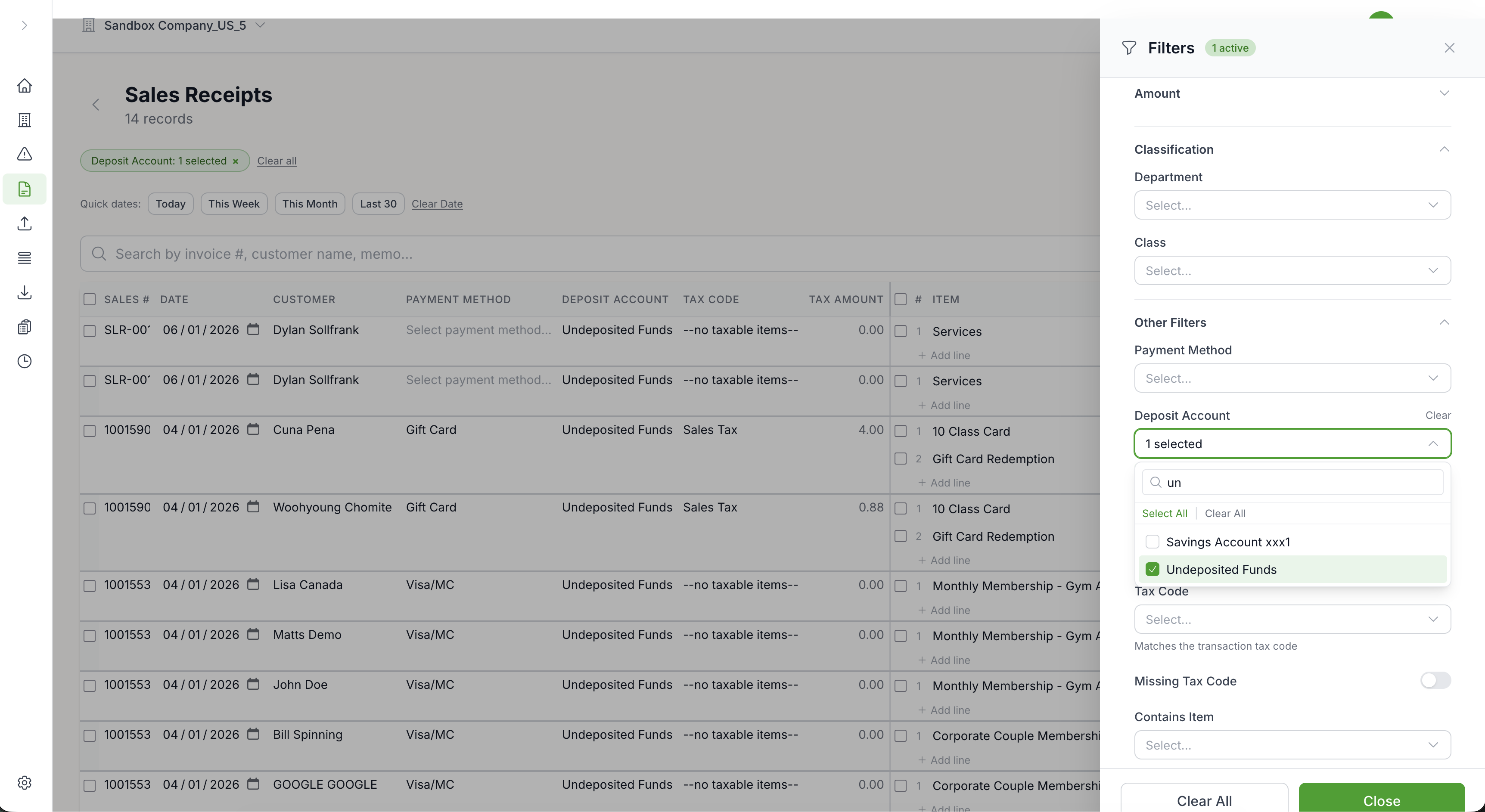
Cut down your list so you only work on the records you intend to. Open the Filters panel on the right. You can narrow by Amount, Classification (Department, Class), and under Other Filters by Payment Method, Deposit Account, Tax Code, or Contains Item — and toggle Missing Tax Code to catch receipts with no tax code at all. Pick a value (for example, set Deposit Account to Undeposited Funds) and the list narrows to just the matching records. You can also use the Quick dates buttons (Today, This Week, This Month, Last 30) or the search bar to filter by sales #, customer name, or memo. The more restrictive the filter, the safer the edit.
3. Select the rows and choose the field to edit.
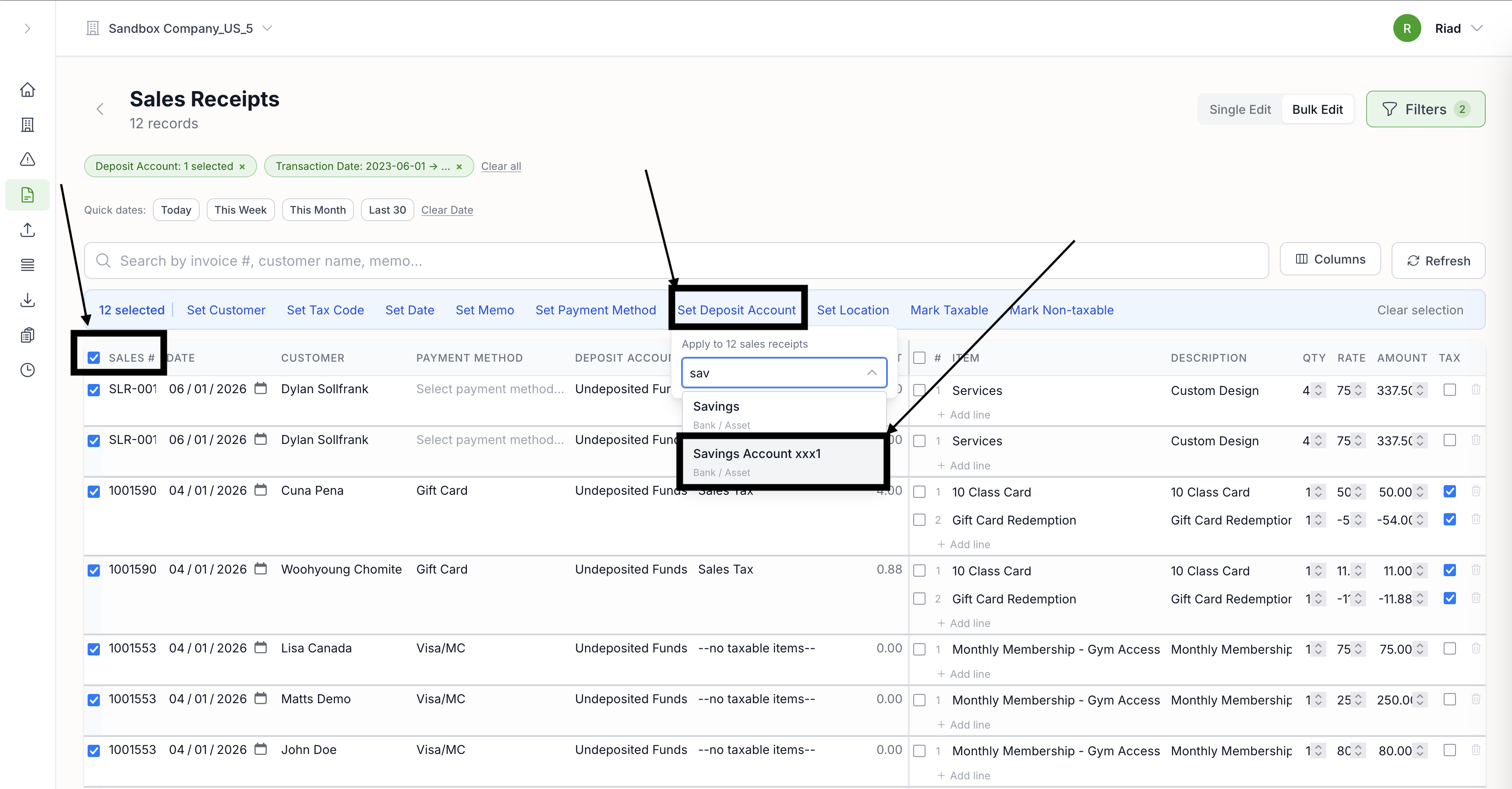
Switch the toggle in the top-right from Single Edit to Bulk Edit. Then tick the checkbox in the SALES # column header to select every filtered row (it shows "12 selected"), or tick individual rows. A blue action bar appears with the fields you can set across the whole selection: Set Customer, Set Tax Code, Set Date, Set Memo, Set Payment Method, Set Deposit Account, Set Location, plus Mark Taxable / Mark Non-taxable.
4. Alter the value.
Click the action for the field you're changing — for example Set Deposit Account. A small panel opens confirming it will Apply to 12 sales receipts, with a type-ahead search. Start typing (e.g. "sav") and pick the target account, such as Savings Account xxx1. The new value is staged across all selected rows at once.
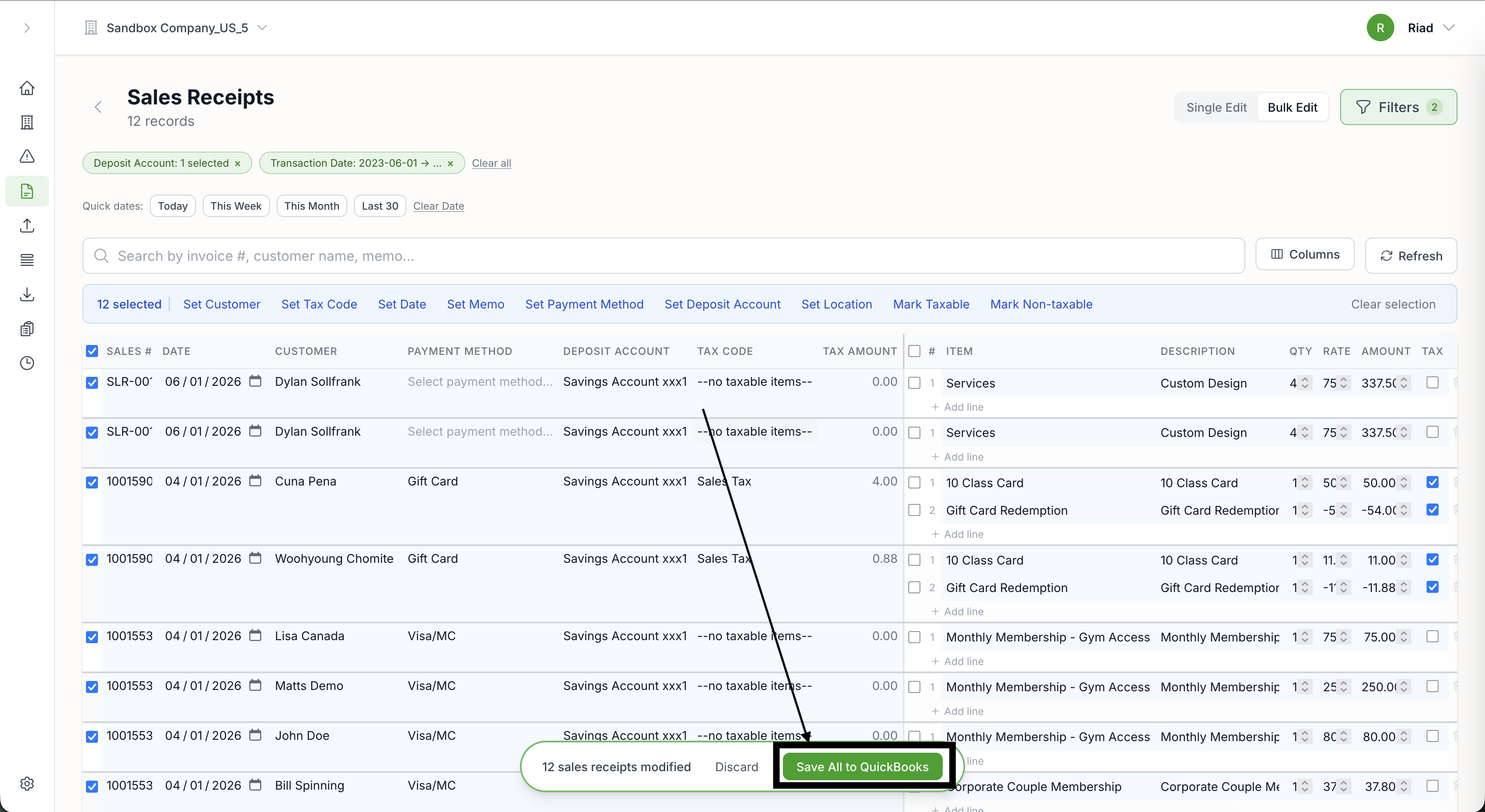
5. Before you save, check the change queue.
This is the safety step. Quellba puts every change into a review queue. Scan it to make sure the field, the updated value, and the number of rows are what you expected. You don't write to QuickBooks unless you tell it to.
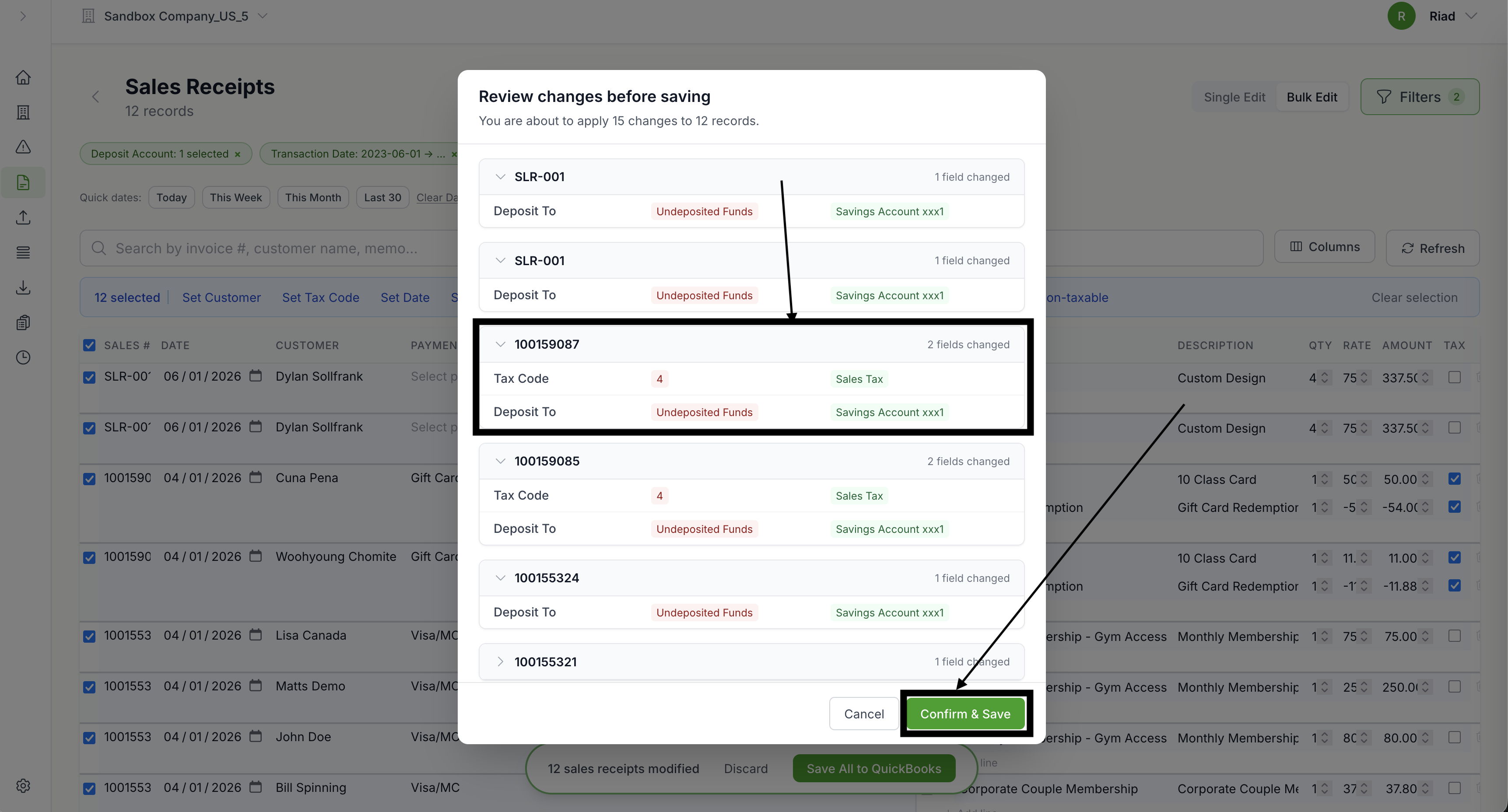
6. Undo if necessary.
Mess up? Open [Batch History] and click [Undo] on the batch to roll back all changes in one click.
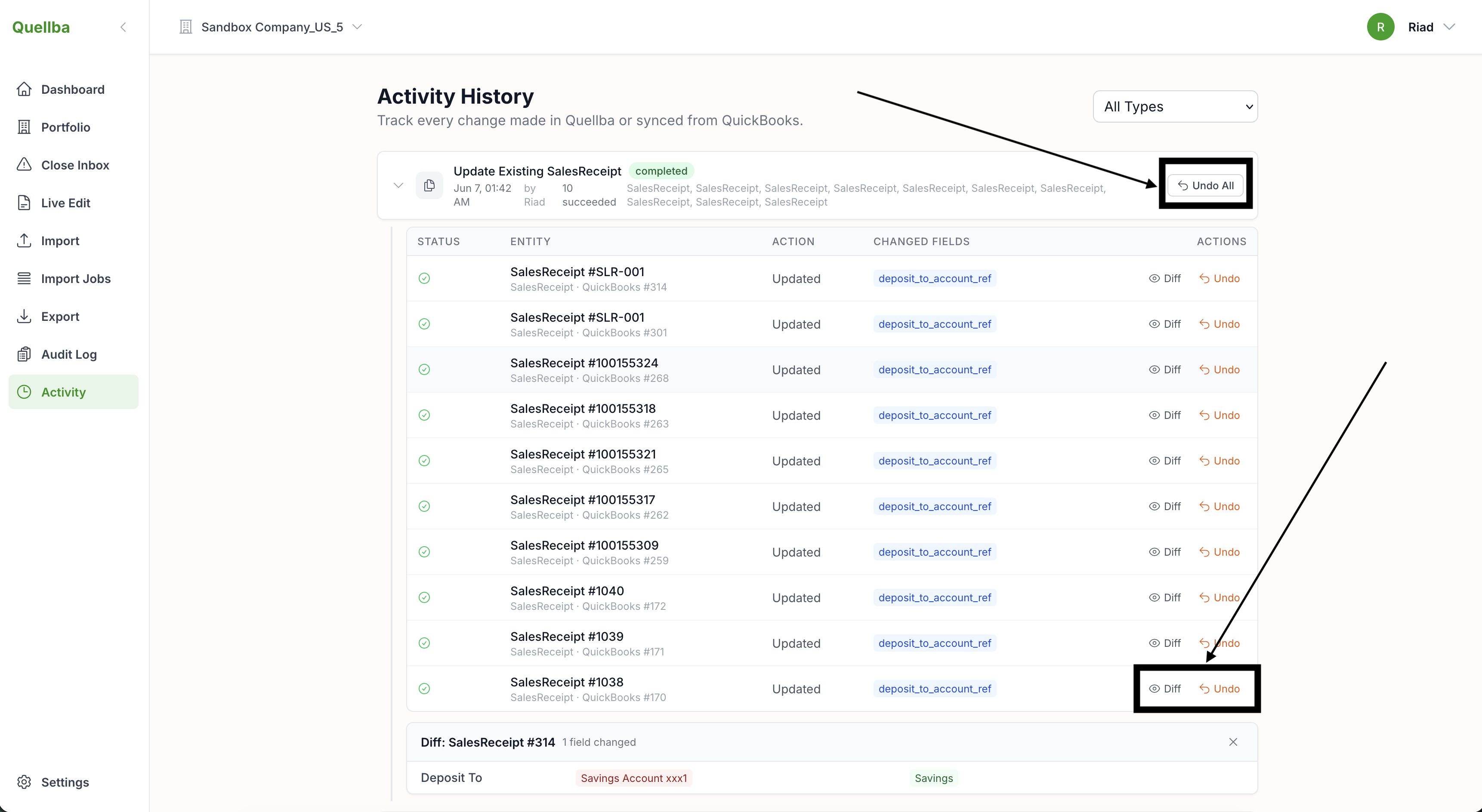
How it played out
Remember those 5,836 receipts? Filtered, bulk-edited in place, reviewed, and saved through Quellba — an afternoon's work, with a complete audit record of every change.
What happens to linked payments and reconciliation?
This is the fear that stops people mass editing, and it is a valid fear. Quellba does not delete and re-create records, it modifies them in place. This means the ties between a sales receipt and its deposit are preserved, and your reconciliations are not thrown out of balance. That's the basic danger of the export-and-reimport way, and editing in place is how you prevent it. After any batch, you may still check against a report and the QuickBooks Audit Log (below).
Tips and warnings
- Select after filtering. The more specific your filter, the less likely you are to accidentally touch a record you didn't plan to.
- Double verify the queue. Quellba does not auto-save, so consider the review step your last check.
- Time to check. Once you've saved, run a Sales Tax Liability or transaction detail report to make sure the modification you made is there.
- Check the QuickBooks Audit Log (Gear symbol) for an independent record of what was altered.
Common questions
Can I bulk edit sales receipts in QuickBooks Online?
Not natively — QuickBooks Online doesn't have a batch editor for sales receipt data such as deposit account or tax code. Quellba is a related tool that provides the ability to update those fields on a filtered batch in place and save back to QuickBooks Online.
How can I change the deposit account of many sales receipts at once?
Filter to the receipts in Quellba, mass set the deposit account column to the correct account, review the queue and save. One click, the modification writes back with an undo to QuickBooks.
How do I batch remove sales receipts from Undeposited Funds?
Filter to the receipts that are sitting in Undeposited Funds, bulk adjust the deposit account to the right bank account, review and save — you don't have to open each receipt up.
Will bulk editing damage linked payments?
No, not with an in-place editor. Quellba updates records in place and stages changes in a review queue before saving, rather than destroying and re-creating receipts — which is what leads to broken payment linkages in the export-import process.